How to Set Up a Printer with CUPS on Arch Linux
This guide will walk you through installing CUPS (Common Unix Printing System) on Arch Linux and configuring a network printer. CUPS is a powerful and flexible printing system that allows you to manage printers and print jobs efficiently.
Step 1: Install CUPS and Required Dependencies
To get started, install the necessary packages using pacman:
sudo pacman -S cups cups-filters cups-pdf ghostscript hplipcups: The core printing system.cups-filters: Provides additional filters for CUPS to support various file formats.cups-pdf: Allows you to create PDF files from print jobs.ghostscript: A suite of tools for processing PostScript and PDF files.hplip: HP Linux Imaging and Printing support (useful if you use a HP printer, like me).
Step 2: Enable and Start the CUPS Service
Once the installation is complete, enable and start the CUPS service:
sudo systemctl enable --now cups.serviceThis ensures that CUPS starts automatically at boot and is immediately available for use.
Step 3: Access the CUPS Web Interface
CUPS provides a web-based interface for managing printers. Open your browser and navigate to:
http://localhost:631Here, you can add, configure, and manage printers.
Step 4: Add Your Printer
- Navigate to the Administration tab.
- Log in using your Linux username and password.
- Click Add Printer.
- CUPS will search for available printers on your network. Select your printer from the list.
- Follow the on-screen instructions to complete the setup.
That’s it! Your printer is now ready to handle print and scan jobs. The following steps are optional.
Step 5: (optional) Print from the Terminal or GUI
Once your printer is configured, you can print documents directly from the terminal or any GUI application.
Printing from the Terminal
1. Check Printer Status:
Use the following command to list available printers and check their status:
lpstat -p -dExample output:
Printer HP_Office_1234 is idle. Enabled since Tue 25 Nov 2025 08:26:52 CET
No system default destination
2. Print a PDF File:
Use the lp command to print a file:
lp -d HP_Office_1234 my.pdfReplace HP_Office_1234 with your printer’s name and my.pdf with the file you want to print.
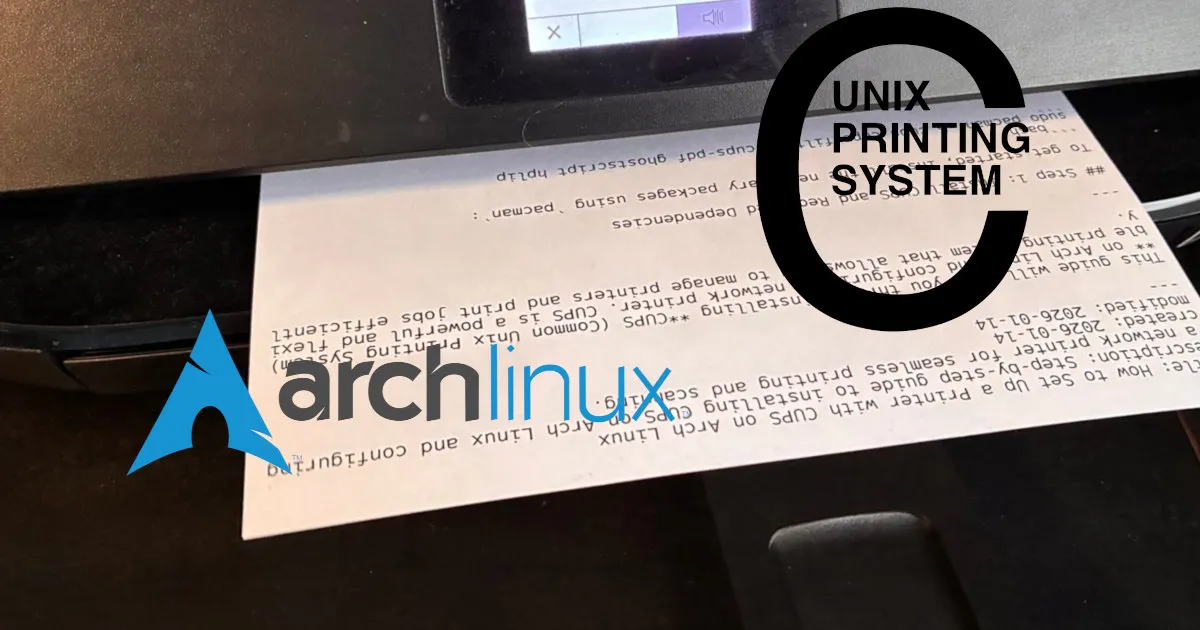
By the way: This blog post’s title image was created by printing the raw Markdown file directly—just like you can with any text file using the lp command. Try it yourself!
Troubleshooting Tips
Printer Not Found?
Ensure your printer is powered on and connected to the same network as your computer. If it’s a USB printer, make sure it’s properly connected.
Permission Issues?
If you encounter permission errors, ensure your user is part of the lp group:
sudo usermod -aG lp \$USERDriver Issues?
If your printer isn’t listed, you may need to install additional drivers. For example, HP printers often require the hplip package, which you installed earlier.
Conclusion
Setting up a printer with CUPS on Arch Linux is straightforward once you know the steps. With CUPS, you can easily manage printers, print jobs, and even create PDFs from print jobs. Whether you’re printing from the terminal or a GUI, CUPS provides a reliable and flexible solution for all your printing needs.
References & Sources
Documentation and Guides
- Arch Linux Wiki: CUPS The official Arch Linux Wiki provided detailed instructions for installing, configuring, and troubleshooting CUPS. This guide was instrumental in structuring the setup process and ensuring compatibility with Arch Linux systems.
Images and Media
-
Arch Linux Logo (Title Image) The Arch Linux logo used in the title image is part of the official Arch Linux branding and artwork. Source: Arch Linux Artwork
-
CUPS Logo (Title Image) The CUPS logo is used to visually represent the Common Unix Printing System. Source: Wikimedia Commons: CUPS Logo

